How To Add, Edit or Delete a Feeding Schedule on My PetSafe® FreshFeed Refrigerated Pet Feeder
Important Information
- A feeding schedule cannot be set to a time less than 6 minutes from the current time when the schedule is saved. This allows time for a brief automatic defrost cycle before the tray rotates.
- A maximum of 10 feedings can be scheduled.
Add a Feeding Schedule
Open the PetSafe® Pet Companion app and select your feeder from the product list.
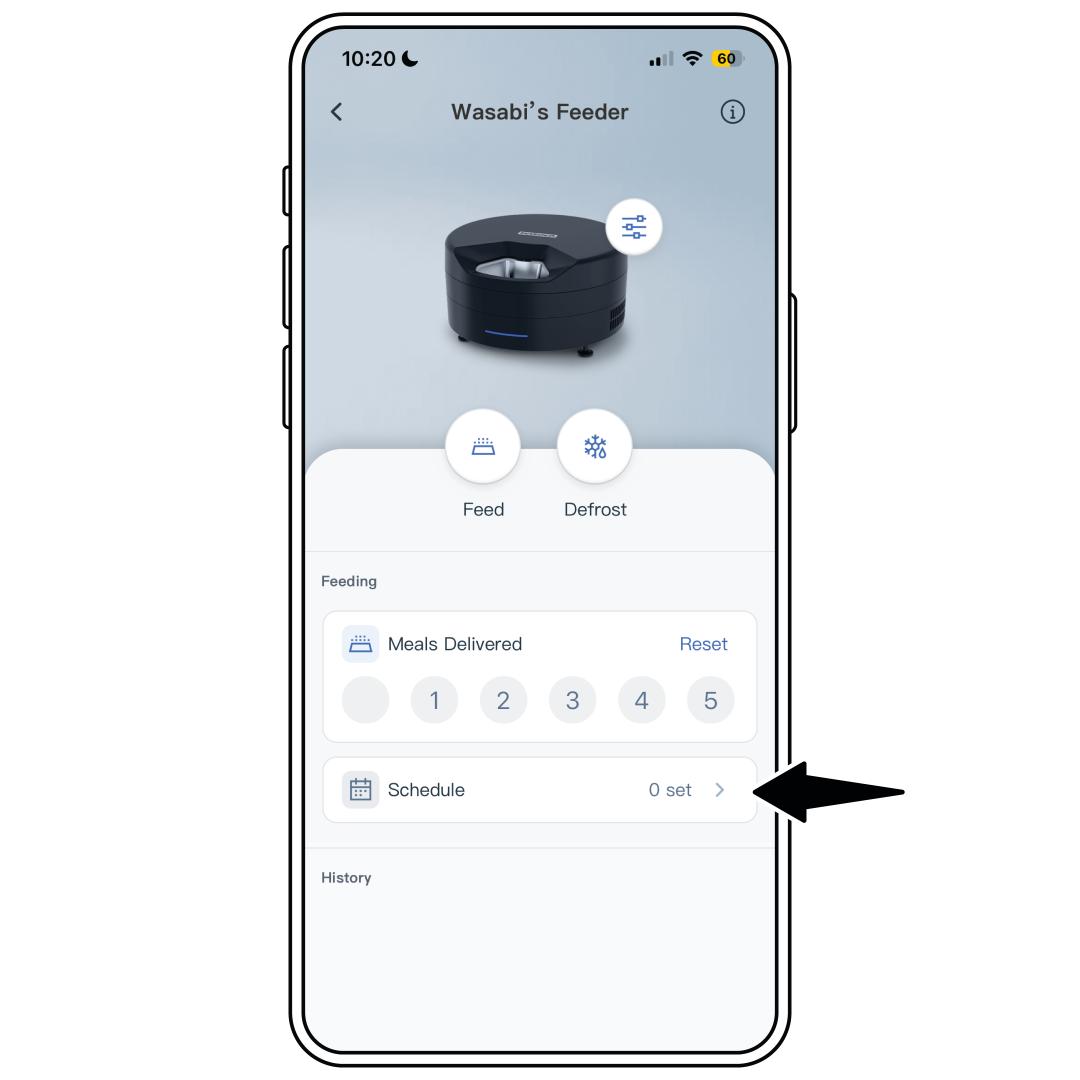
Select Schedule from the middle of the home screen.
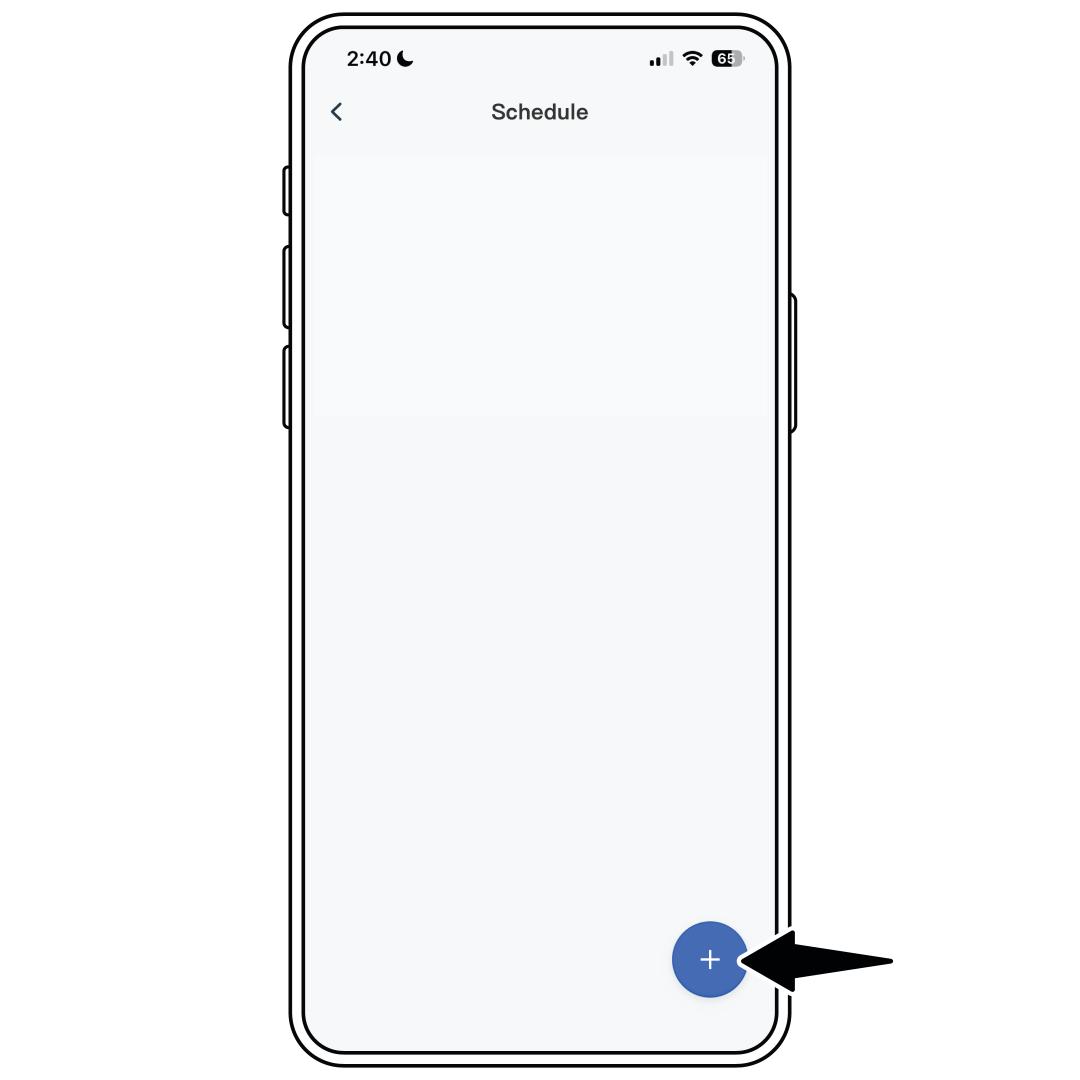
From the schedule menu, tap + to add a new schedule.
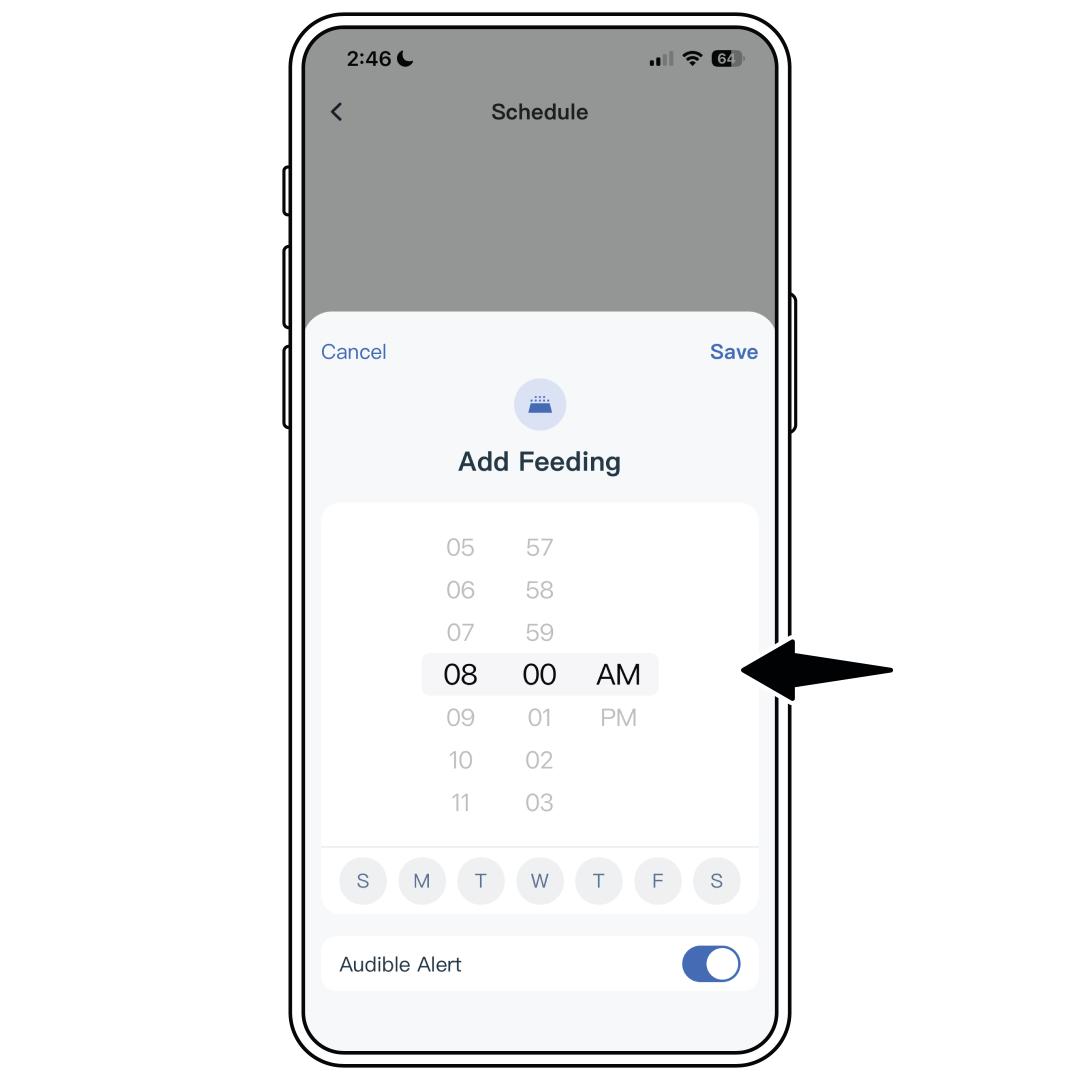
Use the time picker to select the feeding time. The time cannot be less than 6 minutes from the current time when the schedule is saved.
Tap the days you want the feeding schedule to be active.
Toggle the Audible Alert off if you do not want the feeder to beep each time the scheduled feeding occurs (the default is on).
Tap Save in the right corner when you are done.
Repeat steps 2-6 for additional feeding schedules.
Tap < in the upper-left corner to return to the home screen.
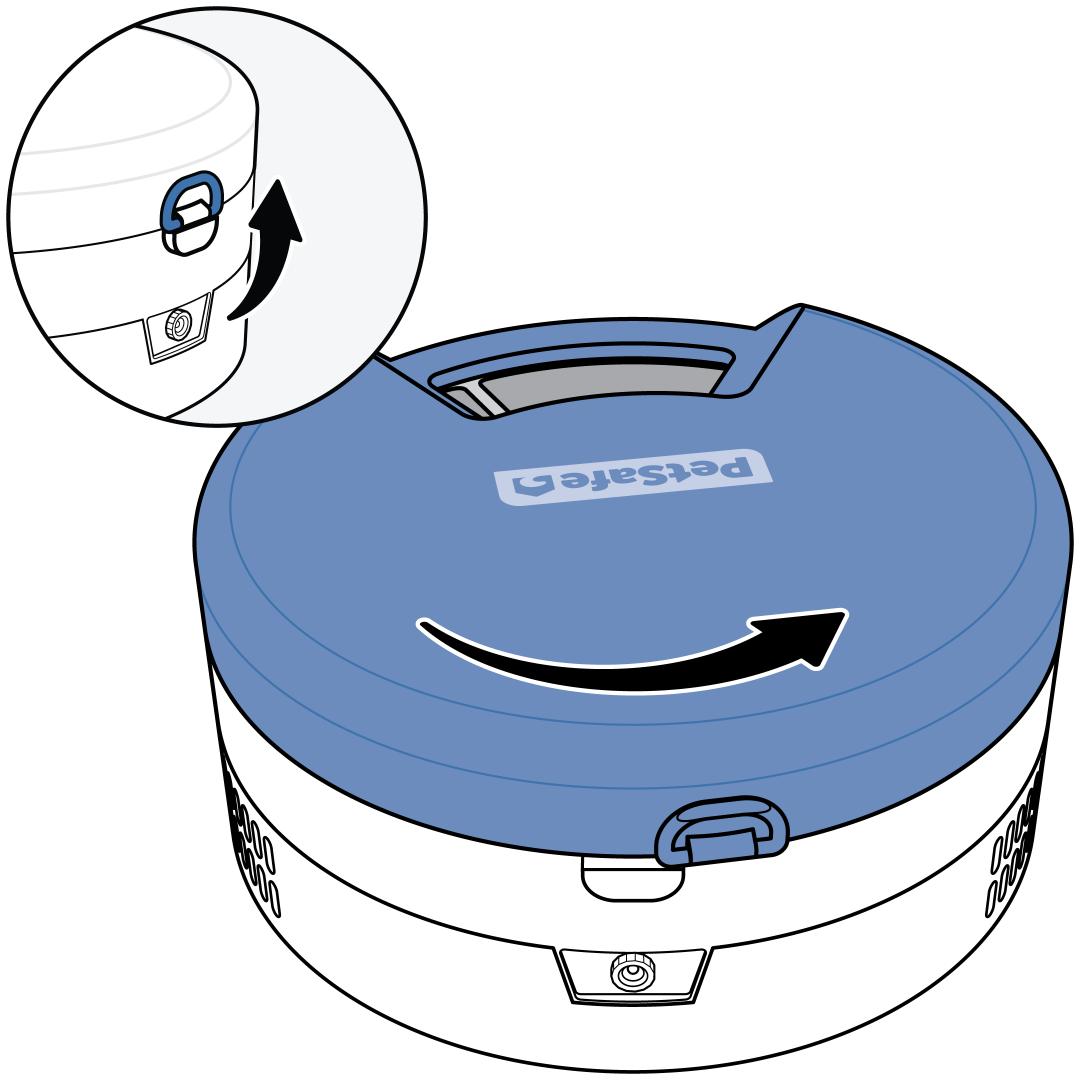
Add food to the tray. To access the tray, lift the latch on the back of the feeder and remove the feeder lid by rotating it counterclockwise and lifting it off.
Each meal compartment can hold up to 3/4 cups (about 5.5 fluid ounces) of food.
Food can be placed into the stainless steel inserts or directly into the food tray compartment.
The meal compartments are numbered, and the meal in the first compartment will be available to your pet immediately.
The tray rotates clockwise and subsequent meals will be available based on the feeding schedule you set up in the app.
Add food to as many compartments as needed.
Edit a Feeding Schedule
Open the PetSafe® Pet Companion app and select your feeder from the product list.
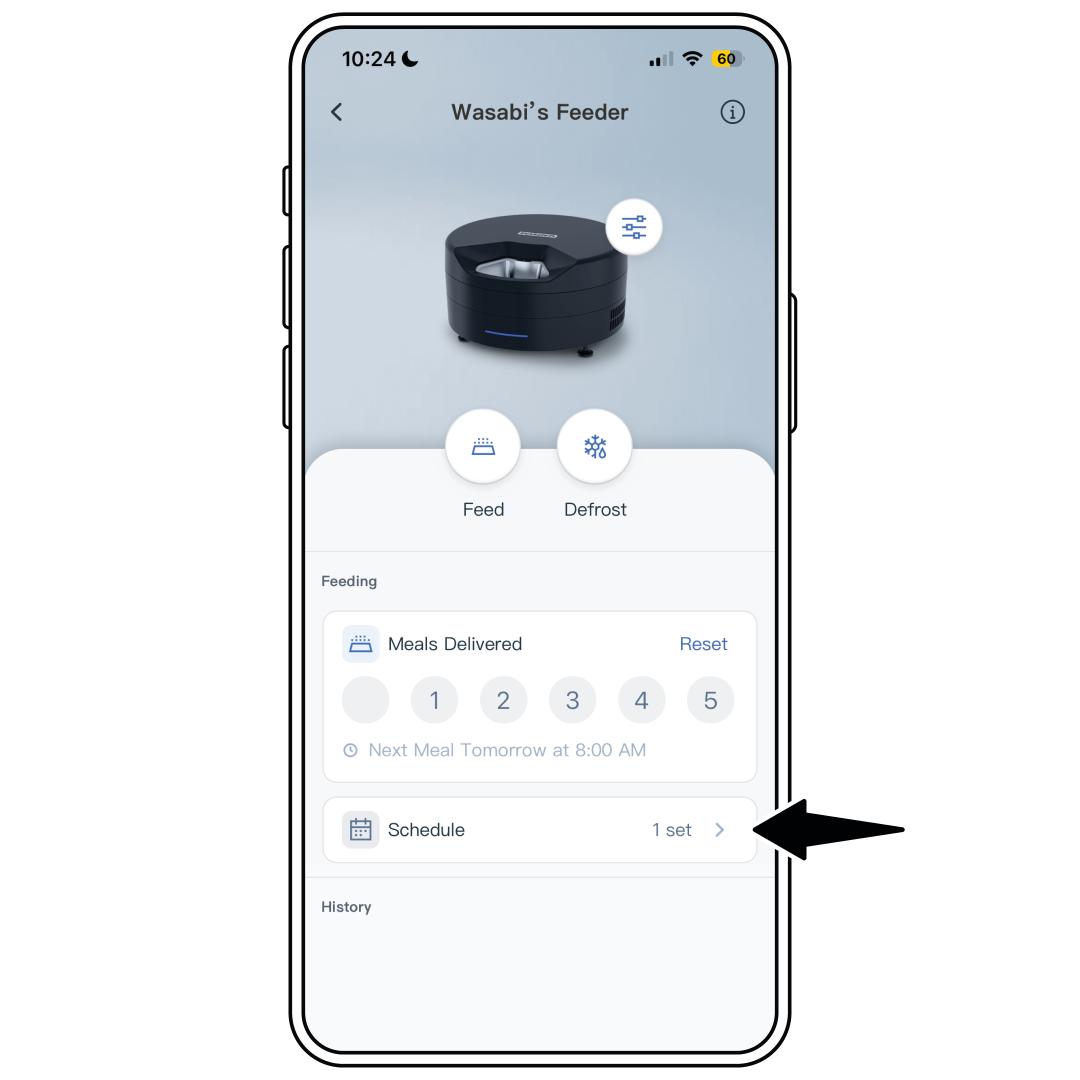
Select Schedule from the middle of the home screen.
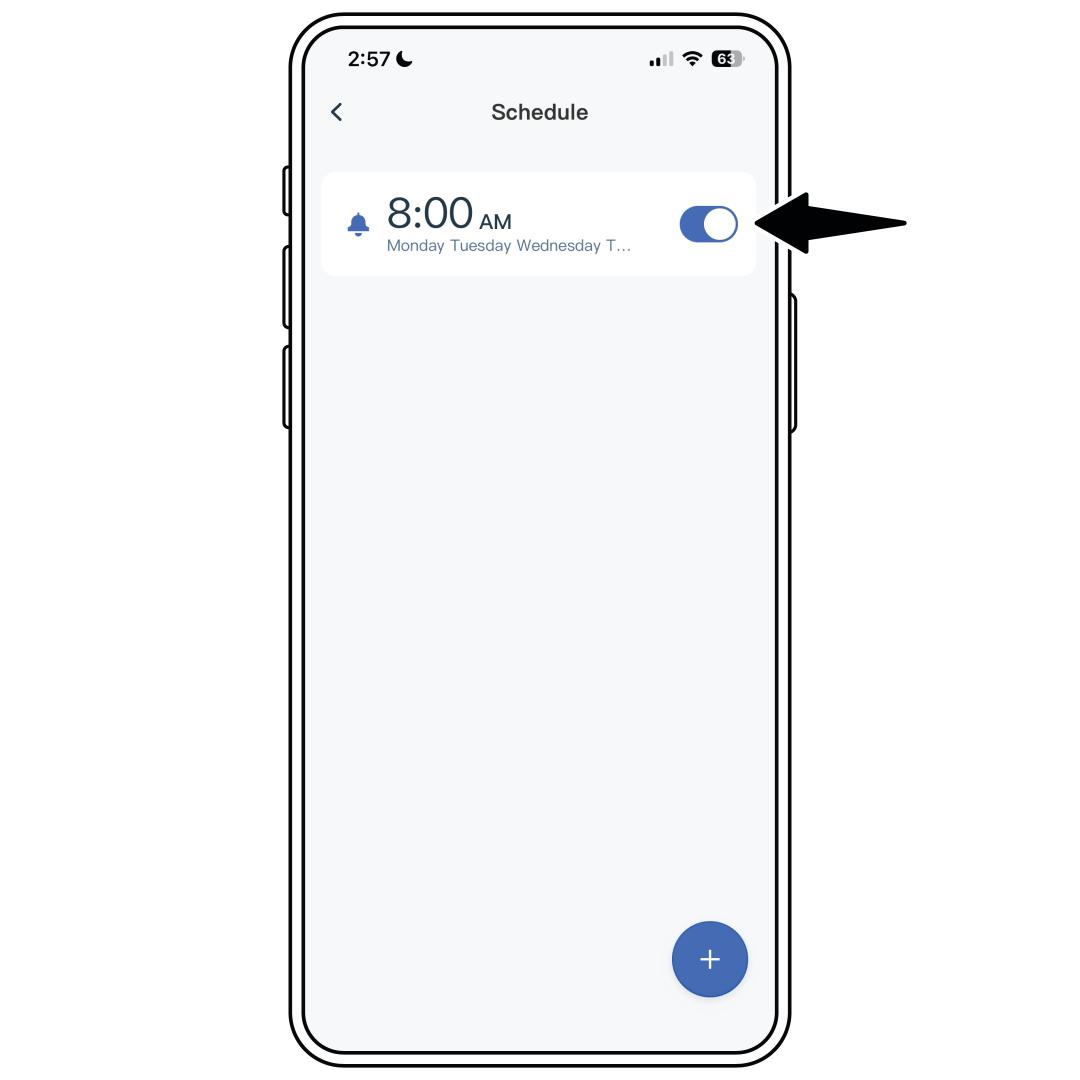
From the schedule menu, schedules can be turned off and on using the toggle. Select the schedule you would like to edit.
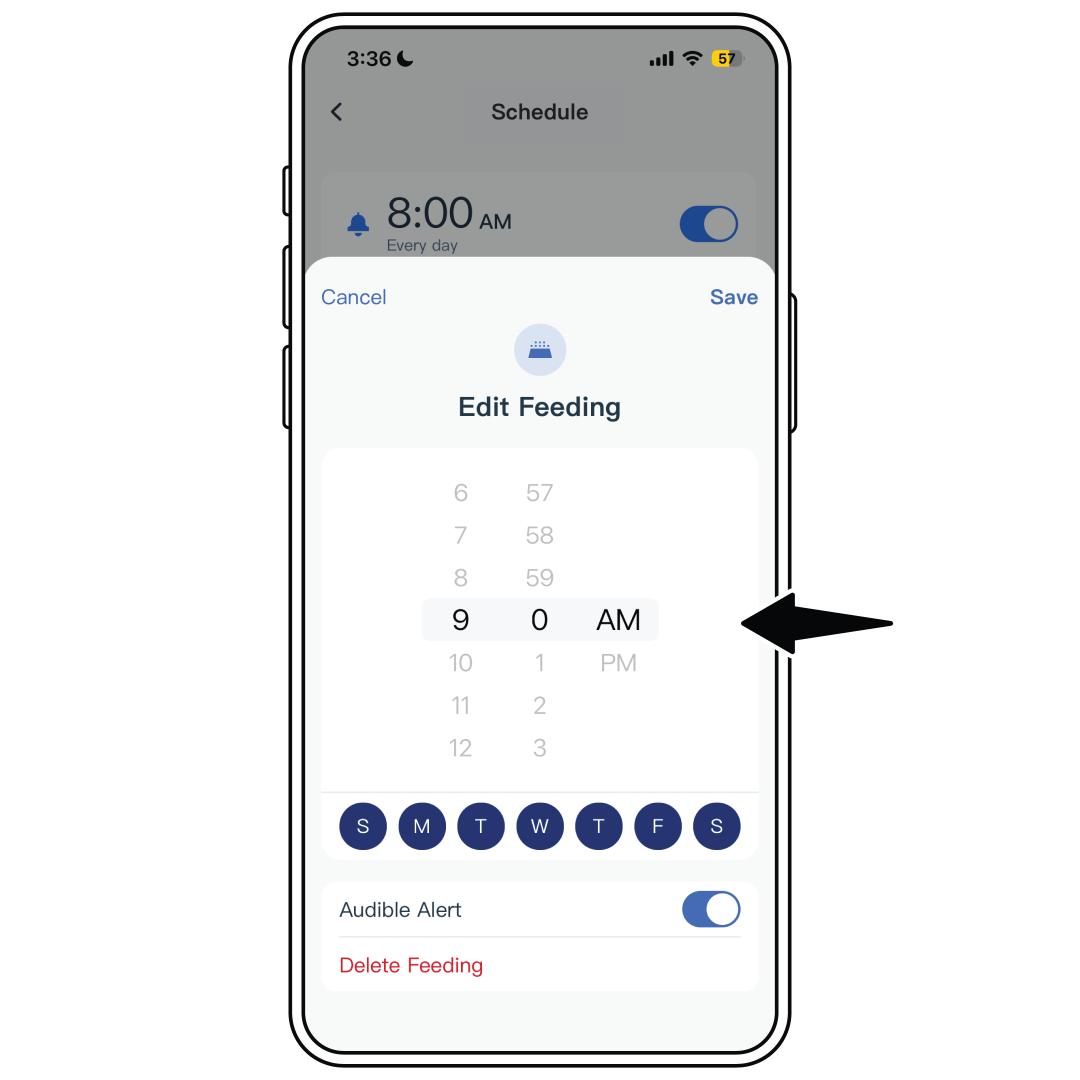
Use the time picker to select the feeding time. The time cannot be less than 6 minutes from the current time when the schedule is saved.
Tap the days you want the feeding schedule to be active.
Toggle the Audible Alert off or on based on if you would like the feeder to beep each time the scheduled feeding occurs.
Tap Save in the right corner when you are done.
Tap < in the upper-left corner to return to the home screen.
Delete a Feeding Schedule
Open the PetSafe® Pet Companion app and select your feeder from the product list.
Select Schedule from the middle of the home screen.
From the schedule menu, select the schedule you would like to delete.
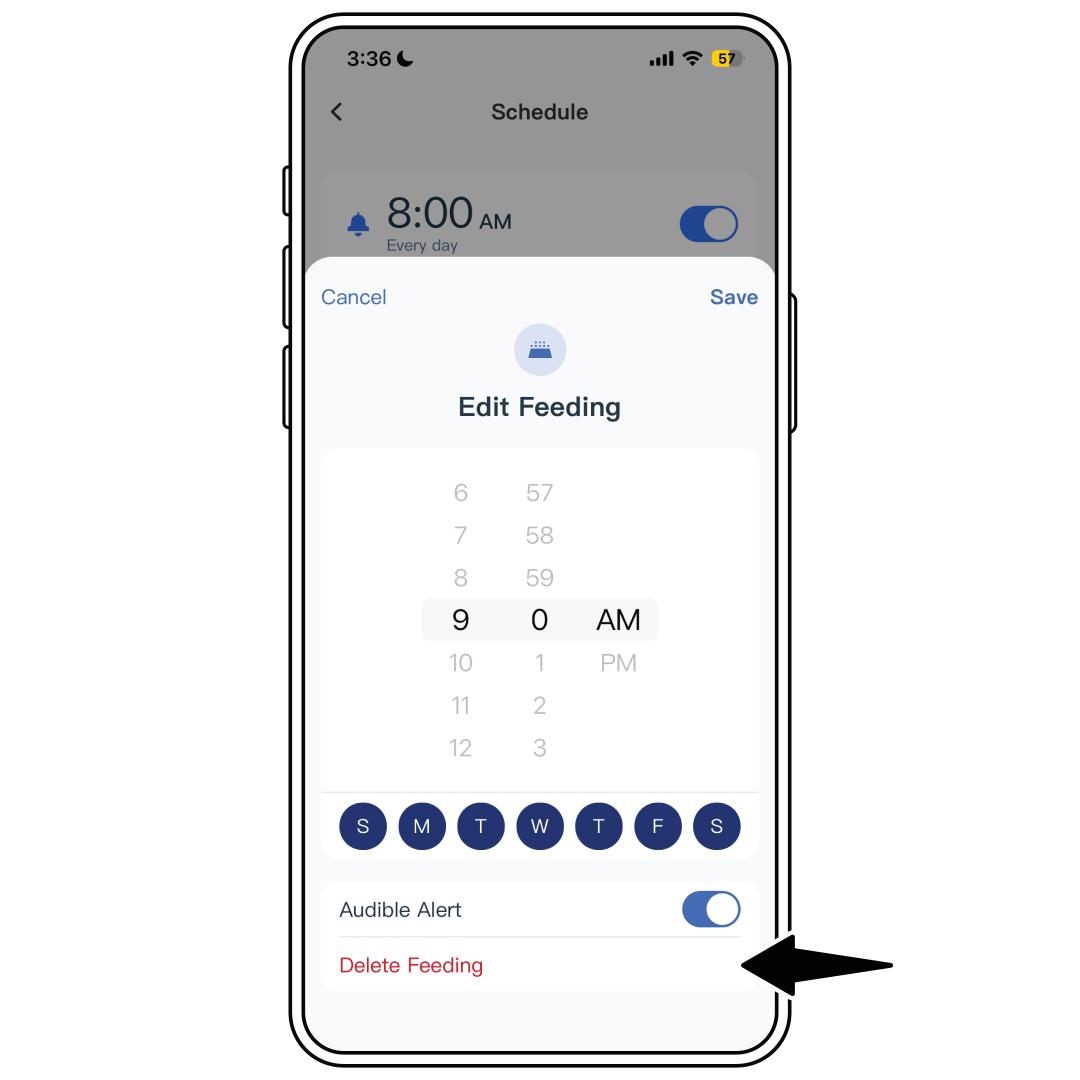
Select Delete Feeding from the bottom of the schedule editor.
Tap < in the upper-left corner to return to the home screen.