How To Change the Settings on My PetSafe® FreshFeed Refrigerated Pet Feeder
Open the PetSafe® Pet Companion app and select your feeder from the product list.
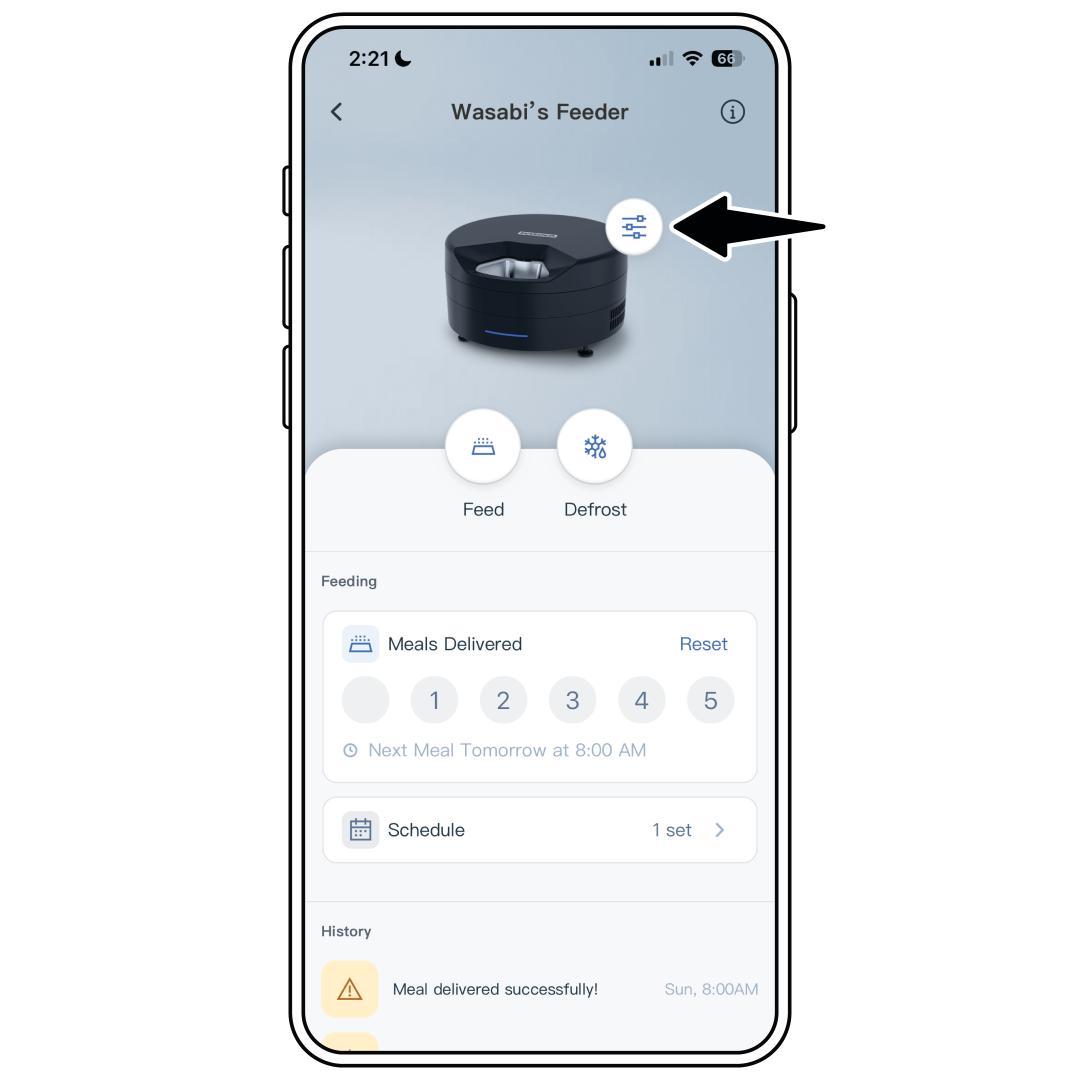
Tap the settings icon next to the feeder image.
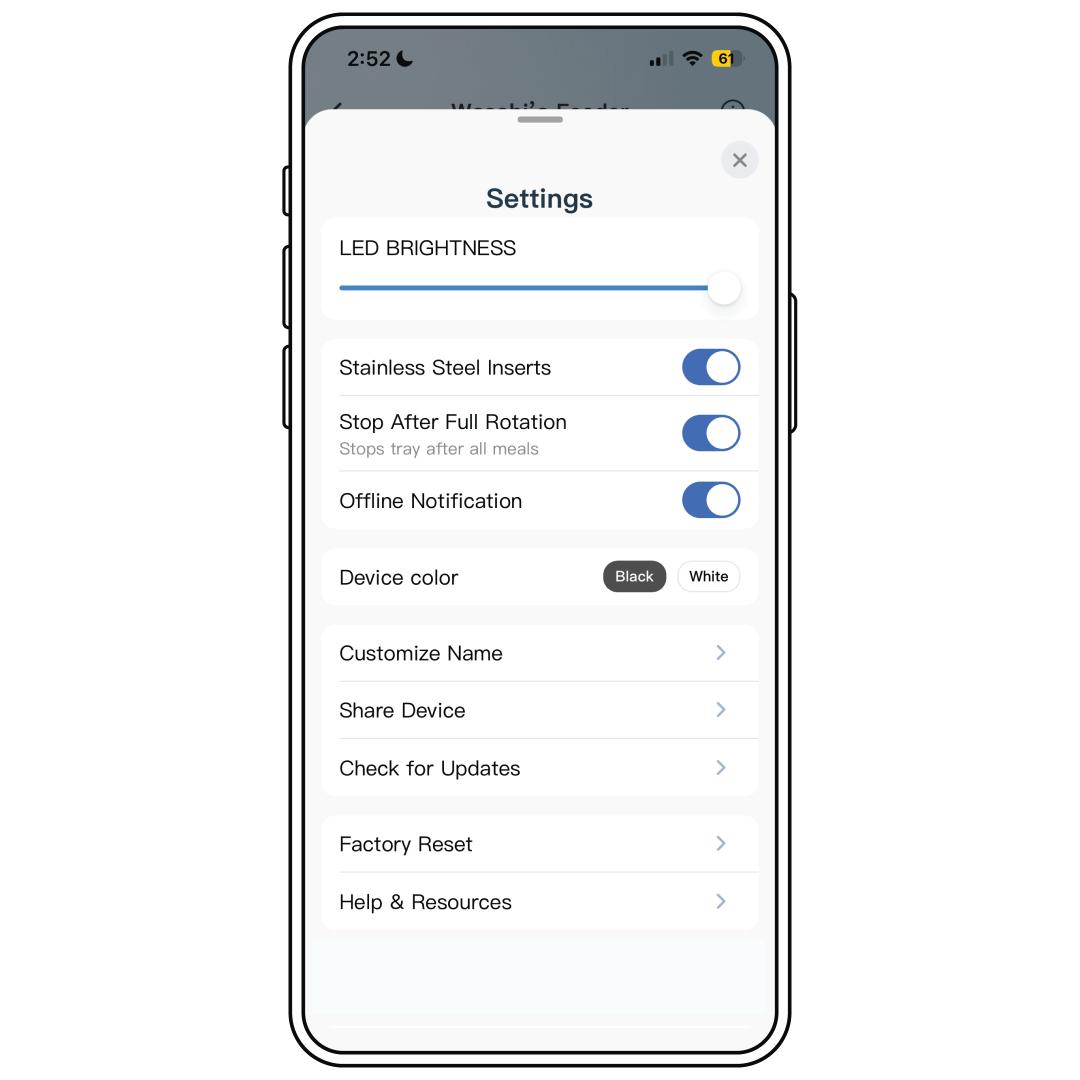
The following settings can be toggled on or off based on your personal preferences. By default, they start turned off.
Stainless Steel Inserts: Turn this option on if you are using the stainless steel inserts. If you are not using the inserts and putting the food directly into the plastic food tray, leave it turned off.
This setting is used to adjust the cooling plate temperature for optimal performance with or without the stainless steel inserts. Make sure to change it each time you start/stop using the inserts.
Stop After Full Rotation: If you would like to receive reminders when it is time to refill the feeder, turn this option on. When Stop After Full Rotation is turned on, the feeder will track the number of meals and display the current meal number on the app home screen. The feeder LED will change color to indicate the number of meals remaining. After the sixth meal, the feeder will stop rotating and the app will prompt you to refill and reset the feeder.
Offline Notifications: Turn this option on to be notified through the app if the feeder goes offline. Turn this option off to opt out of offline notifications.
Additional Options
LED Brightness: Adjusts the brightness of the LED on the front of the feeder. Use the slider to increase or decrease the brightness. Adjusting it to the dimmest setting will turn the LED off.
Customize Name: Allows a custom name to be set for the feeder. This will be the display name for the feeder on the products list on the PetSafe® Pet Companion app home screen.
Share Device: Allows you to share the feeder permanently or temporarily with another user to control the feeder from their phone through the app.
For more information, visit How To Share or Stop Sharing My PetSafe® FreshFeed Refrigerated Pet Feeder.
Device Color: Allows you to select the color of your feeder to correctly display it on the app.
App and Device Management
Check for Updates: Checks for firmware updates for the feeder.
For more information, visit How To Update the Firmware on My PetSafe® FreshFeed Refrigerated Pet Feeder.
Factory Reset: This removes the feeder from the app and resets the feeder to the original factory settings. To use the feeder after a Factory Reset, the set up process will need to be completed again as though it were the first time.
For more information on resetting the device, visit How To Reset My PetSafe® FreshFeed Refrigerated Pet Feeder.