My PetSafe® FreshFeed Refrigerated Pet Feeder Will Not Rotate or Feed Scheduled Meals
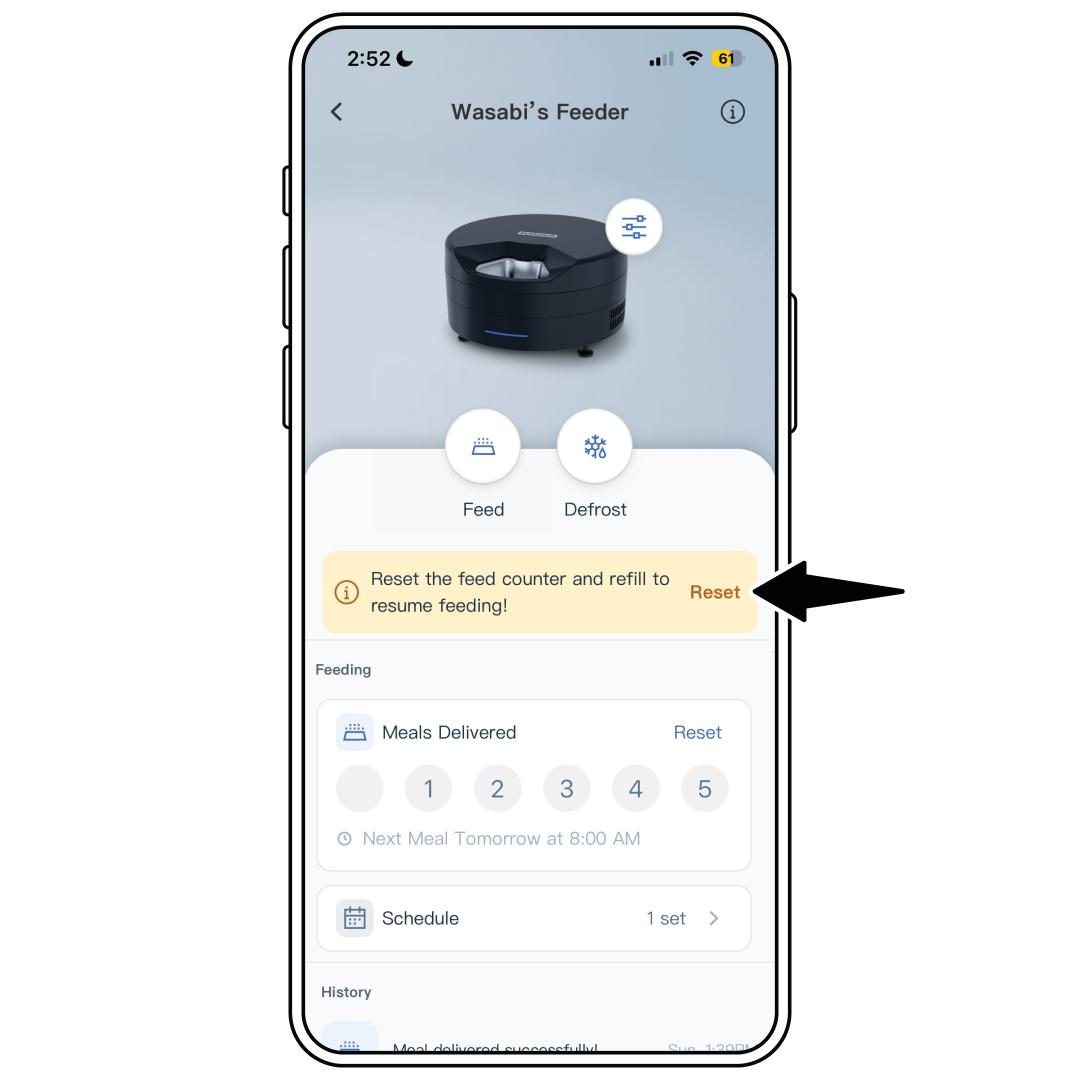
If the Stop After Full Rotation feature is turned on, check whether the feeder is on its last meal. This will be indicated by a solid red LED on the feeder and a notification on the feeder home screen in the app.
- Clean and refill the feeder with food.
- Open the PetSafe® Pet Companion app and select your feeder from the product list.
- Tap Reset on the feed counter notification on the home screen.
- Select Reset to confirm.
Confirm the schedule is set correctly.
- Open the PetSafe® Pet Companion app and select your feeder from the product list.
- Select Schedule in the middle of the home screen.
- From the schedule menu, select the schedule you would like to review or edit.
- Ensure the AM/PM is set correctly.
- Make sure the days you want the feeding schedule to be active are highlighted.
- For more information, visit How To Add, Edit or Delete a Feeding Schedule on My PetSafe® FreshFeed Refrigerated Pet Feeder.
Check for updates.
- Open the PetSafe® Pet Companion app and select your feeder from the product list.
- Tap the settings icon next to the feeder image.
- From the settings menu, select Check for Updates. For more information, visit How To Update the Firmware on My PetSafe® FreshFeed Refrigerated Pet Feeder.
Clean the feeder and check for any obstructions to the feeder tray or ice buildup. For more information, visit How To Clean My PetSafe® FreshFeed Refrigerated Pet Feeder.
Factory reset the feeder if the previous steps do not resolve the issue. This erases the Wi-Fi credentials and feeder settings, returning it to the default factory settings. The feeder will need to be set up again as though it were the first time. For more information, visit How To Reset My PetSafe® FreshFeed Refrigerated Pet Feeder.